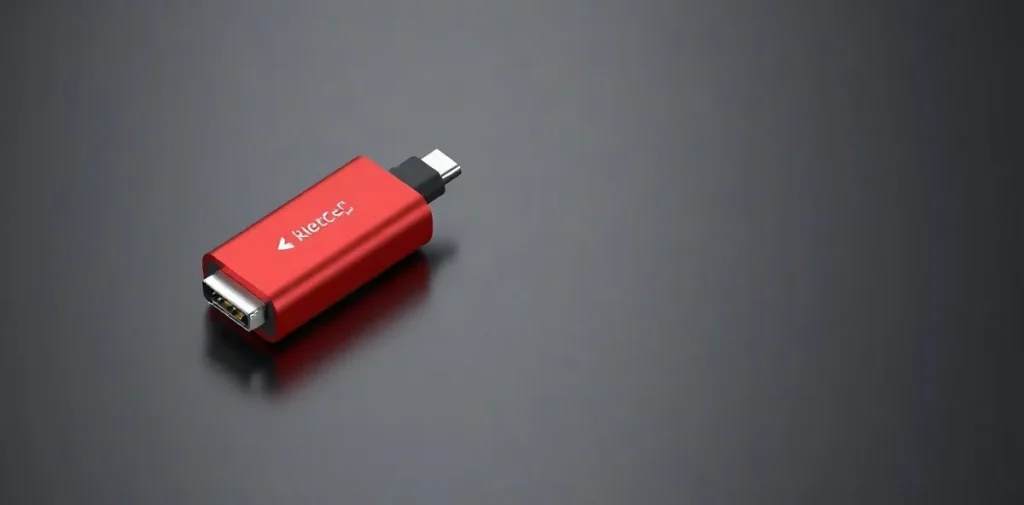
To choose a USB-C cable, first decide what you need it for: charging, data transfer, or video output. Then check whether the cable supports the required power and speed: connectors that look identical do not guarantee identical capabilities.
The USB-C label describes the shape of the connector, not all the cable’s specifications. So one model may work for a phone, while another is better suited to a laptop or monitor. Let’s look at which specs to check before buying so you don’t overpay and get the charging and data-transfer speeds you need.
| Label | What it describes | What to check |
|---|---|---|
| USB-C | Connector type | Cable standard and device features |
| USB-A | Connector type | Data-transfer standard |
| USB 2.0 | Data-transfer standard | Maximum speed — up to 480 Мбит/с |
| USB 3.2 Gen 2 | Data-transfer standard | Support in the cable and both devices |
| DisplayPort, MHL, HDMI | Video protocols | Protocol support in the cable and devices |
- 2014 год year the USB-C connector was introduced
- до 480 Мбит/с maximum USB 2.0 speed
- USB 3.2 data-transfer standard that USB-C may support
What is USB-C, and why isn’t it the same as USB 3.2?
USB-C is a connector type introduced in 2014, while USB 3.2 is a data-transfer standard: the first describes the shape of the connection, the second its technical capabilities. That’s why two devices with identical USB-C ports are not guaranteed to transfer data at the same speed.
Connectors and standards are different things.
USB-C and USB-A connectors can work with different USB standards. USB-A is recognizable by its rectangular shape and plug, which fits only one way; USB-C is symmetrical, but its shape alone does not tell you which generation of data transfer it supports.
- USB-C: a connector type that may support USB 3.2, but does not confirm support for a specific generation.
- USB 3.2: a data-transfer standard that can work over USB-C; it is backward compatible with other USB standards.
- USB-A: another connector type that is also available with different data-transfer standards.
To find out what a USB-C port or cable can do, check the stated standard rather than relying on the plug’s shape. USB 3.2 can connect to devices that support other USB standards, but if the connectors don’t match, you’ll need a suitable adapter.
What data-transfer speed can you expect from a cable?
USB-C data-transfer speed depends on the standard supported by the cable and devices: USB 2.0 supports up to 480 Мбит/с, while the information provided does not specify a numerical speed for USB 3.2 Gen 2. So the USB-C connector alone doesn’t tell you how quickly a cable will transfer files.
USB 2.0 is suitable for charging and basic data transfer. The USB 3.2 Gen 2 label identifies a transfer standard, but it does not, by itself, guarantee that speed for the connection: the slowest link sets the limit — the cable, the device port, or the other end of the connection.
Check the labeling along the entire connection.
- On the cable: look for the exact label USB 2.0 or USB 3.2 Gen 2; USB-C alone isn’t enough, since it only identifies the connector type.
- On the devices: check which standard is supported by the port the cable is plugged into and by the device at the other end. If even one link supports only USB 2.0, a USB 3.2 Gen 2 label on the cable won’t speed up the transfer.
- For basic tasks: USB 2.0, with a limit of up to 480 Мбит/с, may be suitable for charging and simple file transfers; for another standard, check the specs of every part of the connection.
How do you choose a USB-C cable for charging?
To choose a USB-C cable for charging, match its specifications to the requirements of your device and power adapter: identical plugs don’t mean identical speeds or capabilities. USB-C is a connector shape, while data transfer depends on the supported standard; this distinction applies to both cables and connected devices.
What to check before buying
- Device and adapter requirements. Compare them with the cable’s specifications: matching USB-C connectors alone doesn’t guarantee the charging mode you need.
- Data-transfer standard. USB 2.0 is suitable for basic charging, but it doesn’t make a cable universally suitable for fast file transfers or video. USB 2.0 is specified to transfer data at up to 480 Мбит/с.
- Support for video and other protocols. USB-C cables may support DisplayPort, MHL, and HDMI, but you can’t infer that support from the plug’s shape alone.
If a product description lists only USB-C connectors and doesn’t name a data-transfer standard, don’t treat that as confirmation of the speed or video support you need. Choose based on clearly stated specifications: USB 2.0 may be enough for charging, but for other tasks, check support for the required standard and protocol separately.
When does USB-C transmit video, and when doesn’t it?
USB-C transmits video only when the source, cable, and display all support the required video protocol; the plug’s shape alone doesn’t guarantee it. So a device with a USB-C port may connect to a monitor for charging or data transfer without being able to display an image on it.
Check video-protocol support separately
All three links must have compatible capabilities for a video connection — for example, DisplayPort support on the source, cable, and monitor. USB-C is a connector type, not a promise of DisplayPort, MHL, or HDMI support.
- Video source: check whether the USB-C port on your computer or other device supports the video protocol you’ve chosen.
- Cable: look for confirmation that it is compatible with DisplayPort, MHL, or HDMI specifically. USB-C plugs on both ends don’t prove that the cable can transmit video.
- Display: make sure the monitor or TV accepts a signal over the same protocol used by the source.
There is no universal rule that every USB-C cable supports DisplayPort, MHL, or HDMI: capabilities depend on the specific cable and connected devices. Before buying or connecting, check the specifications of all three components — an identical connector does not, by itself, ensure compatibility.
What mistakes do people make when choosing a USB-C cable?
Mistakes happen when the USB-C plug’s shape is taken as a guarantee of speed and features: USB-C identifies the connector, while data-transfer capabilities depend on the standard — such as USB 2.0 or USB 3.2.
The plug’s shape doesn’t promise specific features
The USB-C label alone doesn’t confirm USB 3.2 support, video transmission, or high speed: those capabilities depend on the specific cable. Even if a device’s port supports a particular standard, you can’t automatically assume the cable has the same capabilities — check the cable’s own specifications.
- USB 2.0: data-transfer speed of up to 480 Мбит/с; this may be enough for basic tasks, but not for every data-transfer need.
- USB 3.2: the standard defines data-transfer capabilities, but a USB-C connector does not prove that the cable supports it.
USB 3.2 is backward compatible with other standards, but that doesn’t mean every adapter will work without limitations: connecting devices with different connectors may require an additional adapter. Don’t assume that standard compatibility guarantees compatibility across every combination of cable, port, and adapter.
How do you check a cable before buying?
A quick selection guide
You can check a USB-C cable before buying by looking at four things: intended use, data-transfer standard, device compatibility, and connector types. Charging, file transfers, and video call for different specifications, and the USB-C label alone doesn’t guarantee them.
- Define the task. For file transfers, check the standard and speed; for charging, check the devices’ requirements. If you need video output, make sure the cable supports the right protocol, such as DisplayPort, MHL, or HDMI.
- Find the standard. Look for a specific designation in the description, such as USB 2.0 or USB 3.2 Gen 2. USB 2.0 transfers data at up to 480 Мбит/с; the USB-C label identifies the connector type, not its speed.
- Check both devices. Review the port specifications on the source and receiving device: a cable can’t add USB 3.2 or video-protocol support if either device lacks it.
- Check the connectors. You may need an adapter to connect USB-C to USB-A. USB 3.2’s backward compatibility with other standards doesn’t eliminate the physical difference between USB-C and USB-A.
USB-C is a connector type, while USB 2.0 and USB 3.2 Gen 2 are data-transfer standards. So before paying, match the cable’s specifications to your needs and the capabilities of both devices instead of choosing based only on the plug’s shape.
Frequently asked questions
Do all USB-C cables transfer data?
Can a USB-C cable with USB 2.0 be used for charging?
Can any USB-C cable output video?
Will USB 3.2 work with an older USB standard?
Sources
- digital-razor.ru — “Types of USB connectors: the difference between USB-C and Type-A, 2.0 vs 3.0”
- doctorhead.ru — “USB Type-C connector: what it is, what it looks like, and how”
- unian.net — “USB-C does not guarantee high speed”
- cabletimetech.com — “Not all USB-C cables are created equal: the Pro guide”
- 1-tech.com.ua — “Comparing USB 2.0, 3.0, 3.1, 3.2, and USB4 by speed”
